Twitter Fonts Generator: Copy and Paste Stylish Fonts for X
Your tweets look exactly like everyone else’s. Same letters, same plain text, lost in a feed that never stops moving. Twitter fonts change that in seconds. Type your words once, pick a style you love, and copy and paste it straight into your X name, bio, or post. No downloads, no signups, no design skills. Just twitter text that finally gets noticed.
This free twitter fonts generator gives you unlimited styles, from bold and cursive to glitch, freaky, and fullwidth. Every style works as plain Unicode text, so it shows up on X (the app formerly known as Twitter) on any phone or computer. Scroll down, try the live preview, and make your profile impossible to scroll past.
What Are Twitter Fonts?
Twitter fonts are not real fonts in the technical sense. X does not let you change the typeface of the whole app, and there is no built-in bold or italic button for tweets. What generators call Twitter fonts are actually Unicode symbols: special characters from many alphabets and symbol sets that look like stylish English letters.
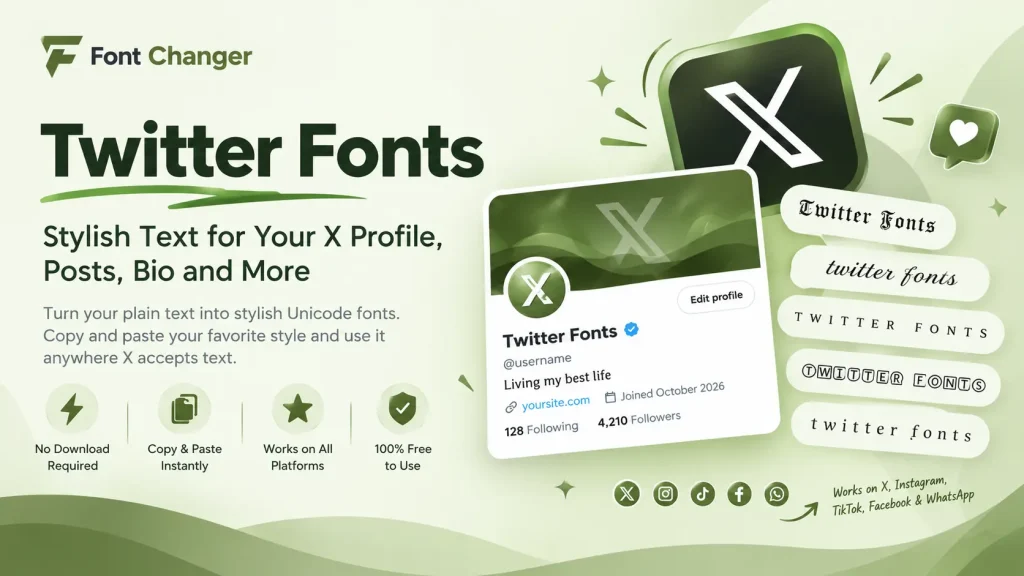
Because they are plain text, not images or attachments, you can paste them anywhere X accepts text: your display name, your bio, your posts, and even your DMs. A font changer lets you transform ordinary text into different styles that you can copy and paste without installing any software. These styles also work on Instagram, TikTok, Facebook, and WhatsApp, since all of these platforms support Unicode text. The platform itself renders everything in its own typeface, Chirp, which we explain below, but your styled characters pass through as Unicode text.
How to Use This Twitter Fonts Generator
This twitter font generator was built around how X profiles actually work, so the steps below follow the tool on this page exactly.
Pick what you are styling: Name, Bio, or Post
Above the input box you will see three tabs. Tap Name to style your display name, Bio for your profile bio, or Post for a tweet draft. Each tab keeps its own text, so you can prepare all three without losing anything. The placeholder hints guide you: “Your name…”, “Your bio…”, “Write a post…”.
Type your text and add your @username
Type up to 300 characters into the box, or tap the X button to clear it and start over. Below the preview you will find a username field. Enter your handle (letters, numbers, and underscores only, up to 15 characters, just like X itself) and the live preview shows it as @yourname, exactly as followers would see it.
Browse unlimited styles across 21 categories
Browse the 21 categories: Alphabets, Small, Cursive, Bold, Round, Square, Freaky, Flip and Mirror, Crowned, Underline, Lines, Bend, Asian, Russian, Glitch, Joiner, Boxed, Symbolic, Historical, Bricks, and Big. The All and Numbers tabs show everything, or just digits, in one place. Open the Mood tab for extra mood chips, or use the font style name dropdown (the “Aa” menu) to jump straight to a style like Script or Fraktur by name. Tap Load more to keep revealing styles, 24 at a time.
Check the live preview before you copy
This is the part most copy paste twitter tools skip. The preview panel shows a mock X profile with your styled text placed as the display name, the bio, and a sample post, so there are no surprises. Drag the size slider (14 to 40) to inspect small details, and flip the verified badge toggle to see the full look. The tool itself never limits what you type. The character counter simply compares your length against X’s real limits (50 for the name, 160 for the bio, 280 for a post) and warns you the moment you go over, because some Unicode styles count as more than one character.
Copy and paste into X
Hit the Copy button to copy the current styled preview, or tap any style in the list to copy it directly. Then open X, go to Edit profile or the post composer, and paste your styled x text. Tap the star on any style to save it to your favorites, which are kept in your browser even after you close the tab. Your recently used styles wait for you under the Recent tab.
Unlimited Twitter Fonts in 21 Categories
Here is what this twitter fonts collection covers, with a real example of each popular category so you know what you are picking. Examples are shown in code style so every character displays exactly as it will on X.
Bold Styles
The classics for emphasis. Sans bold, Serif bold, Bold italic, and Sans bold italic turn any word into a headline. Example:
𝐓𝐰𝐢𝐭𝐭𝐞𝐫 𝐟𝐨𝐧𝐭𝐬 𝐥𝐨𝐨𝐤 𝐛𝐨𝐥𝐝
Cursive Styles
Script and Bold script give an elegant handwritten feel, perfect for personal bios. Example:
𝒯𝓌𝒾𝓉𝓉𝑒𝓇 𝒻𝑜𝓃𝓉𝓈
Freaky and Glitch Styles
Freaky mix, Glitch, and Heavy glitch scramble letters with zalgo marks for a chaotic, edgy look. Example:
T̷w̷i̷t̷t̷e̷r̷ ̷f̷o̷n̷t̷s̷
Small styles
Small caps, Superscript, Subscript, and Tiny caps shrink text for subtle, aesthetic lines. Example:
ᴛᴡɪᴛᴛᴇʀ ꜰᴏɴᴛꜱ
Underline and Lines
Underline, Double underline, Strikethrough, Overline, and Cross out add marks above, below, or through your letters. Example:
T̲w̲i̲t̲t̲e̲r̲ ̲f̲o̲n̲t̲s̲
Boxed and Circled
Circled, Black circles, Squared, and Black squares wrap each letter in a shape. Example:
Ⓣⓦⓘⓣⓣⓔⓡ 🅵🅾🅽🆃🆂
Flip and Mirror
Upside down, Mirror, and Reversed flip your text for playful replies. Example:
sʇuoɟ ɹǝʇʇıʍʇ
Asian and Historical Alphabets
Japanese, Thai, Cherokee, Runic, and Greek style borrow characters from other writing systems. Example:
丅山丨丅丅乇尺 下口れ丅丂
Symbolic and Joined
Star joined, Heart joined, Wave joined, and Currency weave symbols between letters. Example:
T♥w♥i♥t♥t♥e♥r ♥f♥o♥n♥t♥s
The full set also includes Monospace, Double-struck, Fullwidth, Italic, Vaporwave, Braille, Leet, Bricks, Crowned, Bend, and Numbers styles, each reachable from its category tab.
Twitter Fonts by Mood
Sometimes you do not want a style category, you want a feeling. Open the Mood tab and you will find 12 mood chips: cool, angry, attitude, royal, gaming, happy, heart, kawaii, sad, motivational, romantic, and minimal. Pick one and get decorated twitter fonts that match the mood.
A few examples of what the moods do:
Cool
꧁༒☬ Nova ☬༒꧂
Angry
😡 Nova 😡
Royal
👑 Nova 👑
Whether you want cool twitter fonts for a gaming handle or royal decorations for a fan page, there is a mood for it.
Mood decorations work best on short text like a name or a one-line bio. On a long tweet they crowd the words, so keep them short and let the symbols do the talking.
Quick picks: the right style for each job
Do not want to browse everything? This short table pairs the best twitter fonts with the job each one does best, along with the character limit X allows for each field (researched from X’s current specs).
|
Job |
Try this style |
X limit |
Why it works |
|
Profile bio |
Small caps |
160 chars |
Clean and readable at small sizes |
|
Display name |
Bold sans |
50 chars |
Stands out in notifications and search |
|
Post hook |
Fullwidth |
280 chars |
Grabs attention in the feed |
|
Playful reply |
Upside down |
280 chars |
Fun, and still easy to read |
|
Profile location |
Script |
30 chars |
A small elegant touch under your bio |
Twitter Fonts for Your Bio
Your X bio is only 160 characters, so every character has to earn its place. Fancy twitter fonts can make those 160 characters work harder, but the trick is restraint: one style for the whole bio reads clean, while five mixed styles look messy.
When choosing twitter bio fonts, readable styles win in bios. Small caps, monospace, and light script stay legible on small phone screens, while heavy glitch or zalgo styles can turn into visual noise at bio size. Try your bio in the generator’s Bio tab and read it in the live preview at a small size before you commit. A bio like ᴅɪɢɪᴛᴀʟ ᴄʀᴇᴀᴛᴏʀ | ᴛᴇᴄʜ ʟᴏᴠᴇʀ scans instantly. A bio like T̷̷̷w̷̷̷i̷̷̷t̷̷̷t̷̷̷e̷̷̷r̷̷̷ does not.
Watch the character counter as you type. Some decorative Unicode characters count as two or more characters toward the 160 limit even though they look like one letter on screen. If the counter warns you, switch to a simpler style or trim a word.
One more profile field most people forget: location. It accepts the same Unicode text, so a styled location like 📍 𝓝𝓮𝔀 𝓨𝓸𝓻𝓴 adds one more touch of personality without costing you a single bio character.
Twitter Fonts for Your Name and Username
X has two different name fields, and they follow different rules. Your display name (up to 50 characters) accepts styled Unicode, so this is where twitter name fonts shine. Your username, the @handle (up to 15 characters, letters, numbers, and underscores only), does not accept styled characters at all.
The winning combination is a styled display name plus a clean, memorable handle. For example, display name ⚡ 𝓐𝓵𝓮𝔁 ⚡ with handle @alexwrites . People find you through the handle, and they remember you through the styled name. If you are hunting for twitter username ideas, keep the handle short, spellable, and free of numbers if you can, then let the display name carry the personality.
If you want the twitter bold look for your name without hurting readability, bold sans and serif bold are the safest picks. They render consistently on iOS and Android and stay readable in notifications and search results. Save two or three name styles to your favorites so you can rotate them whenever you rebrand.
Twitter Fonts for Tweets and Posts
A post gives you 280 characters, the most room of any X field, which makes it the best place to experiment. Use this page as a tweet generator: draft the post in the Post tab, style the hook line in bold or fullwidth, and leave the body in plain text so it stays easy to read. Readers decide in about a second whether to keep reading, and a styled first line buys you that second.
Styled twitter fonts work best for emphasis, not for entire paragraphs. A fullwidth headline like Fullwidth headline followed by normal text gives you impact plus readability. A whole tweet in heavy zalgo gives you neither. For photo posts, a short styled twitter caption above the image draws the eye before the picture loads. And yes, you can style twitter slang, abbreviations, and emojis together: type them normally and the generator styles every character it recognizes.
Never style hashtags or @mentions
Here is the one rule that matters. A styled hashtag is no longer a hashtag: X will not turn it into a clickable link, and it will not appear in hashtag search. The same goes for @mentions, which stop linking to the profile. X search also does not match styled words to their plain versions, so a styled keyword will not help your post get discovered. Keep hashtags, mentions, and searchable keywords in plain text.
One caution: X’s algorithm and other users both prefer readable content. Screen readers, which blind users rely on, read styled Unicode letter by letter, so a fully styled long tweet is genuinely hard work to listen to. Style the hook, keep the rest plain, and everyone wins.
Two quick extras. If you have X Premium, your posts can run far longer than the standard 280 characters, up to 4,000, though the tool’s Post tab uses 280 as its guide. And once you have a post with a styled hook that performs well, pin it to the top of your profile so every new visitor sees it first.
Which Font Does Twitter Actually Use?
If you landed here wondering about the font Twitter uses, here is the straight answer. The typeface you see across the X interface is called Chirp. Twitter announced it in January 2021 as its first ever proprietary typeface, designed with the Swiss foundry Grilli Type. It blends American Gothic and European Grotesque styles, and it rolled out to the web, Android, and iOS apps in August 2021, replacing the system fonts Twitter had borrowed before: SF Pro, Roboto, and Helvetica Neue.
Chirp even hides an easter egg: typing [CHIRPBIRDICON] renders the old Twitter bird logo through a ligature. When Elon Musk rebranded Twitter to X in July 2023, the interface kept the Chirp family while the branding moved to the stark X logo. So the font Twitter uses for its interface is Chirp, while the font used in Twitter posts is whatever Unicode characters you paste in. That covers both halves of the question: the chirp font people ask about, and the x fonts generators like this page.
Do Twitter Fonts Work on Every Phone?
Yes, with one exception worth knowing. Because twitter fonts are Unicode text, they work on iPhone, Android, tablets, and desktops without any app or install. But very old phones and outdated operating systems may be missing some of the rarer Unicode blocks. On those devices a style can show up as empty boxes (□□□) instead of letters.
Three rules keep you safe. First, test important text, like your name and bio, on a second device if you can. Second, keep the styles with the widest support, such as bold, italic, script, and fullwidth, for anything people must be able to read. Third, save the exotic styles for decoration around plain words, not as the words themselves. There is no way to change the font of Twitter itself for other people; you can only control your own text, so make your own text bulletproof.
Why Use Our Twitter Fonts Generator?
Most twitter fonts copy and paste sites give you a long list and wish you luck. This one shows you the result before you commit. The live X profile preview puts your styled text into a mock name, bio, and post with your @username attached, so you see exactly what followers will see. The character counter watches X’s real limits (50, 160, 280) and warns you before you go over, instead of letting you paste text that X will cut off.
The unlimited styles are organized into 21 real categories instead of one endless wall, with a Mood tab for quick browsing and a font style name dropdown that jumps straight to the style you want. Your starred favorites and recent styles are saved in your browser, free. It is a small tool that respects your time, which is the whole point. Some sites advertise 800+ styles, but a big number means little if half of them render as boxes on your phone. Every style here is previewed live before you copy, so what you see is exactly what your followers get.
Frequently Asked Questions
Conclusion
Plain text is invisible on X. Twitter fonts fix that in under a minute: unlimited styles, a live preview that shows your real profile before you commit, and copy paste that works on every device. Style your name so people remember you, style your bio so they follow you, and style your hooks so they stop scrolling. And because these twitter fonts are plain Unicode text, they work on every phone with nothing to install.
Scroll back up, type your name into the twitter fonts generator, and give your profile the look it deserves. Your next follower is one stylish bio away.